

Toplang Monitor Brightess Switch 1.0.3
Toplang Monitor Brightess Switch 1.0.3 | Size: 784.2 KB
Language: English
Quickly adjust monitor brightness and contrast by switching between predefined display modes. If you use different monitor brightness and contrast for day and night, for work and gaming, or movie watching, you may currently be adjusting your monitor through its OSD menu or using software with slider bars. If you find this process annoying, it is time for a change.
No more OSD menus or slider bars; simply click to switch.
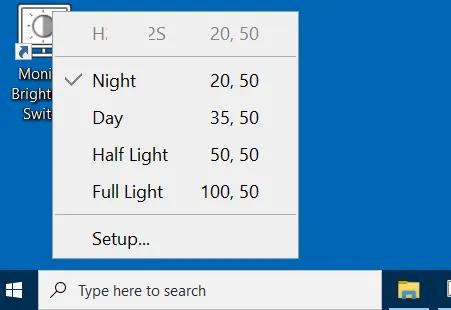
With Monitor Brightness Switch (MBS), you can easily switch your monitor to predefined display modes with simple clicks. You can define these display modes according to your preferences, each tailored with specific brightness and contrast settings for various environments or situations.
Use it as a taskbar pinned app
We have been using this convenient tool every day, and found out that using it as a pinned program on the taskbar, is better than using it from the desktop context menu. After MBS was pinned to the taskbar, you can use its quick menu by a single click.
Use it from desktop context menu
Monitor Brightness Switch can be added to the desktop context menu, so that you can right-click anywhere on your desktop, choose it in the context menu to show and switch display modes, without the need to launch it from start menu or desktop shortcut icon.
Change brightness with clicks
Monitor Brightness Switch isn't working by providing some slider bars for you to drag to adjust display brightness/contrast. That can sometimes be annoying.
It lets you define display modes with different brightness and contrast for different environments or situations.
When you launch the software, a main menu pops up with those display modes. You choose one of them to switch brightness and contrast of the monitor to the values defined in that mode.
Supports multiple monitors
Monitor Brightness Switch works well with multiple monitors.
The main menu will list all the monitors connected to your computer, and you can choose any of them to operate on. When you define display modes, you can set "target monitor" to any mode to limit it to the specific monitor.
Change brightness of monitor hardware
Monitor Brightness Switch changes brightness/contrast of the monitor hardware directly, not some software-simulated effects.
This ensures the monitor always works in its designed state and there won't be any kind of color distortion.
HOMEPAGE:
https://www.toplang.com/mbs/
FREE DOWNLOAD LINKS:
https://rapidgator.net/file/511e07812723e829c27b6c8d55266943/Toplang_Monitor_Brightess_Switch_1.0.3.rar
https://nitroflare.com/view/6AE60102E2BD2CB/Toplang_Monitor_Brightess_Switch_1.0.3.rar

Information
Users of Guests are not allowed to comment this publication.

